|
Case # C1616775
Subject: I used the Samsung browser to get in Not able to access
Hello Lorena,
Since you currently have a Phone-Based OTP registered on your account, you have the option to add a Mobile ID credential to your account and utilize the proofing from the Phone-Based OTP. Once complete, you'll be able to sign into the Managed Access Gateway (MAG) using the Mobile ID credential in order to access all of your partner applications, including those previously requiring the Phone-Based OTP credential. To complete this process, please follow the steps below: Register Your Mobile Device - Ensure the Twilio Authy App is downloaded and installed on your smartphone. Please make sure that push notifications are on you de
- Click MAG LOGIN in the top right corner and sign in to your account.
- Click the
 button in the blue "My 2FA Credentials" bar in the middle of the page. button in the blue "My 2FA Credentials" bar in the middle of the page. - Click on the
 button. button. - Click on Add on Mobile ID (Authy).
- You will be prompted to Authenticate and enter your Phone OTP code.
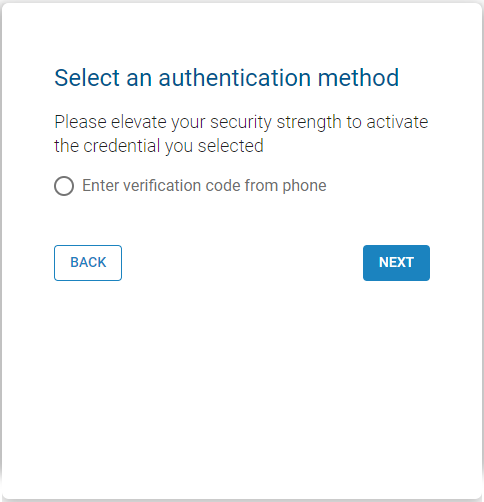
- Follow the on-screen activation steps for Mobile ID.
- Enter the phone number associated with the smartphone where Authy is installed, then click Register.
- On your smartphone, open the Authy app when prompted. You will see the message: “Your account was added. Tap to get the code.”
- Return to MAG and enter the OTP code displayed in the Authy app to verify your registration.
- (Optional) Register a secondary phone as a backup method. You may also do this later from your MAG profile.
- Open a Chrome or Edge window.
- Go to my.exostar.com (do not use a saved or favorite link).
-
- Possible Error: Invalid License Key. Please re-enter and submit to confirm. If invalid purchase a new license key at Exostar's Web Store.
- If you get this error, please provide the token serial number as well as the sales order number from the token purchase in order for support to address the error.
- After authenticating, you will be prompted to enter the phone number for the smartphone where Authy™ is installed. Click Register.
Please note you can authenticate with your Mobile ID using two different methods. If during the OTP login you select to authenticate through a push notification, you will receive the message Approve to authenticate: select Approve. If you select to authenticate through a soft OTP, enter the OTP from Authy in the Soft OTP field in MAG.
If you require assistance at any point, please contact Exostar Customer Support.
To update your case, please log into the Support Portal or simply reply to this email.
Thank you,
|
|
————— Case Message History —————
-----Original Message-----
Sent: 6/29/2026
Subject: I used the Samsung browser to get in Not able to access
Since you currently have a Phone-Based OTP registered on your account, you have the option to add a Mobile ID credential to your account and utilize the proofing from the Phone-Based OTP. Once complete, you'll be able to sign into the Managed Access Gateway (MAG) using the Mobile ID credential in order to access all of your partner applications, including those previously requiring the Phone-Based OTP credential. To complete this process, please follow the steps below: Register Your Mobile Device - Ensure the Twilio Authy App is downloaded and installed on your smartphone. Please make sure that push notifications are on you de
- Click MAG LOGIN in the top right corner and sign in to your account.
- Click the button in the blue "My 2FA Credentials" bar in the middle of the page.
- Click on the button.
- Click on Add on Mobile ID (Authy).
- You will be prompted to Authenticate and enter your Phone OTP code.
- Follow the on-screen activation steps for Mobile ID.
- Enter the phone number associated with the smartphone where Authy is installed, then click Register.
- On your smartphone, open the Authy app when prompted. You will see the message: “Your account was added. Tap to get the code.”
- Return to MAG and enter the OTP code displayed in the Authy app to verify your registration.
- (Optional) Register a secondary phone as a backup method. You may also do this later from your MAG profile.
- Open a Chrome or Edge window.
- Go to my.exostar.com (do not use a saved or favorite link).
-
- Possible Error: Invalid License Key. Please re-enter and submit to confirm. If invalid purchase a new license key at Exostar's Web Store.
- If you get this error, please provide the token serial number as well as the sales order number from the token purchase in order for support to address the error.
- After authenticating, you will be prompted to enter the phone number for the smartphone where Authy™ is installed. Click Register.
Please note you can authenticate with your Mobile ID using two different methods. If during the OTP login you select to authenticate through a push notification, you will receive the message Approve to authenticate: select Approve. If you select to authenticate through a soft OTP, enter the OTP from Authy in the Soft OTP field in MAG.
If you require assistance at any point, please contact Exostar Customer Support.
-----Original Message-----
Sent: 6/29/2026
Subject: I used the Samsung browser to get in Not able to access
Payment confirmation From: Turnpack LLC <info@turnpack.com>
Sent: Monday, June 29, 2026 9:48 AM
To: 'Exostar Customer Support' <cases.861427.6893479_107394504_42309865.c7c1d56004@861427.email.netsuite.com>
Subject: RE: Exostar Case #C1616775 Update: I used the Samsung browser to get in Not able to access Online ACH Payment 11225445745 To Exostar (_#####1386) 
| | Case # C1616775 Subject: I used the Samsung browser to get in Not able to access Hello Lorena, This is to notify you that a case has been created for your recent inquiry. To update your case or provide additional documentation, please click on the case number in the top right corner of this message, or simply reply to this email. To update your case, please log into the Support Portal or simply reply to this email. Thank you, | Please do not include content or attachments that contain credentials, passwords, or sensitive data from within your applications. Exostar will delete any content found to contain this type of information. |
| Try Our New Self-Service Customer Portal Manage your accounts, renew, upgrade, track shipping, and access resources — all in one place, 24/7. |
| ————— Case Message History ————— -----Original Message-----
Sent: 6/29/2026
Subject: I used the Samsung browser to get in Not able to access This is to notify you that a case has been created for your recent inquiry. To update your case or provide additional documentation, please click on the case number in the top right corner of this message, or simply reply to this email.
-----Original Message-----
Sent: 6/29/2026
Subject: I used the Samsung browser to get in Not able to access
If you are having trouble accessing Exostar pages, please first review our System Requirements located at the bottom of this page. These instructions will help you renew your own OTP Token subscription or renew OTP Token subscriptions for other users.
To Renew a Single OTP Subscription- Open Chrome or Edge.
- Navigate to myexostar.com (avoid using bookmarks).
- Click MAG LOGIN in the top‑right corner and sign in.
- At the bottom of the Dashboard, under Billing & Support, click View.
- At the top of the page, click Customer Portal (Self Service!).
- Under My Account (2FA), locate your active subscription.
- Click Renew.
- Complete the checkout process.
To Renew Multiple OTP Subscriptions for Other Users- Open Chrome or Edge.
- Go to myexostar.com (do not use a saved bookmark).
- Click MAG LOGIN in the top‑right corner and sign in.
- At the bottom of the Dashboard, under Billing & Support, click View.
- Change your role to External: Org Contact on the top right.
- Click Customer Portal (Self Service!) at the top.
- On the left menu, click Bulk Renewals.
- Select the checkbox next to the user(s) who need renewal.
- Click Create Renewal Order at the bottom right.
- Complete the checkout process.
If you pay via credit card, the Renewal Date in MAG for the selected subscriptions will be updated within 24 hours. If you choose to be invoiced, your payment must be received and processed by Exostar before the subscription renewal will be processed. If you require further assistance, please do not hesitate to contact Customer Support again.
-----Original Message-----
Sent: 6/29/2026
Subject: I used the Samsung browser to get in Not able to access
This is to notify you that a case has been created for your recent inquiry. Please provide this case number to your chat support agent. |
2325 Dulles Corner Boulevard, Suite 600 | Herndon, VA 20171 Phone: 1.703.793.7800 | UK: 0203 300 7093 | Fax: 1.703.793.1763 Support Hours: 3am–9pm Eastern, Monday–Friday www.exostar.com | To ensure inbox delivery of case messages, please add our email to your address book. |
-----Original Message-----
Sent: 6/29/2026
Subject: I used the Samsung browser to get in Not able to access
Online ACH Payment 11225445745 To Exostar (_#####1386) From: Exostar Customer Support <customersupport@exostar.com>
Sent: Monday, June 29, 2026 9:47 AM
To: info@turnpack.com
Subject: Exostar Case #C1616775 Update: I used the Samsung browser to get in Not able to access
| | Case # C1616775 Subject: I used the Samsung browser to get in Not able to access Hello Lorena, This is to notify you that a case has been created for your recent inquiry. To update your case or provide additional documentation, please click on the case number in the top right corner of this message, or simply reply to this email. To update your case, please log into the Support Portal or simply reply to this email. Thank you, | Please do not include content or attachments that contain credentials, passwords, or sensitive data from within your applications. Exostar will delete any content found to contain this type of information. |
| Try Our New Self-Service Customer Portal Manage your accounts, renew, upgrade, track shipping, and access resources — all in one place, 24/7. |
| ————— Case Message History ————— -----Original Message-----
Sent: 6/29/2026
Subject: I used the Samsung browser to get in Not able to access This is to notify you that a case has been created for your recent inquiry. To update your case or provide additional documentation, please click on the case number in the top right corner of this message, or simply reply to this email.
-----Original Message-----
Sent: 6/29/2026
Subject: I used the Samsung browser to get in Not able to access
If you are having trouble accessing Exostar pages, please first review our System Requirements located at the bottom of this page. These instructions will help you renew your own OTP Token subscription or renew OTP Token subscriptions for other users.
To Renew a Single OTP Subscription- Open Chrome or Edge.
- Navigate to myexostar.com (avoid using bookmarks).
- Click MAG LOGIN in the top‑right corner and sign in.
- At the bottom of the Dashboard, under Billing & Support, click View.
- At the top of the page, click Customer Portal (Self Service!).
- Under My Account (2FA), locate your active subscription.
- Click Renew.
- Complete the checkout process.
To Renew Multiple OTP Subscriptions for Other Users- Open Chrome or Edge.
- Go to myexostar.com (do not use a saved bookmark).
- Click MAG LOGIN in the top‑right corner and sign in.
- At the bottom of the Dashboard, under Billing & Support, click View.
- Change your role to External: Org Contact on the top right.
- Click Customer Portal (Self Service!) at the top.
- On the left menu, click Bulk Renewals.
- Select the checkbox next to the user(s) who need renewal.
- Click Create Renewal Order at the bottom right.
- Complete the checkout process.
If you pay via credit card, the Renewal Date in MAG for the selected subscriptions will be updated within 24 hours. If you choose to be invoiced, your payment must be received and processed by Exostar before the subscription renewal will be processed. If you require further assistance, please do not hesitate to contact Customer Support again.
-----Original Message-----
Sent: 6/29/2026
Subject: I used the Samsung browser to get in Not able to access
This is to notify you that a case has been created for your recent inquiry. Please provide this case number to your chat support agent. |
2325 Dulles Corner Boulevard, Suite 600 | Herndon, VA 20171 Phone: 1.703.793.7800 | UK: 0203 300 7093 | Fax: 1.703.793.1763 Support Hours: 3am–9pm Eastern, Monday–Friday www.exostar.com | To ensure inbox delivery of case messages, please add our email to your address book. |
-----Original Message-----
Sent: 6/29/2026
Subject: I used the Samsung browser to get in Not able to access
This is to notify you that a case has been created for your recent inquiry. To update your case or provide additional documentation, please click on the case number in the top right corner of this message, or simply reply to this email.
-----Original Message-----
Sent: 6/29/2026
Subject: I used the Samsung browser to get in Not able to access
If you are having trouble accessing Exostar pages, please first review our System Requirements located at the bottom of this . These instructions will help you renew your own OTP Token subscription or renew OTP Token subscriptions for other users.
To Renew a Single OTP Subscription- Open Chrome or Edge.
- Navigate to (avoid using bookmarks).
- Click MAG LOGIN in the top‑right corner and sign in.
- At the bottom of the Dashboard, under Billing & Support, click View.
- At the top of the page, click Customer Portal (Self Service!).
- Under My Account (2FA), locate your active subscription.
- Click Renew.
- Complete the checkout process.
To Renew Multiple OTP Subscriptions for Other Users- Open Chrome or Edge.
- Go to (do not use a saved bookmark).
- Click MAG LOGIN in the top‑right corner and sign in.
- At the bottom of the Dashboard, under Billing & Support, click View.
- Change your role to External: Org Contact on the top right.
- Click Customer Portal (Self Service!) at the top.
- On the left menu, click Bulk Renewals.
- Select the checkbox next to the user(s) who need renewal.
- Click Create Renewal Order at the bottom right.
- Complete the checkout process.
If you pay via credit card, the Renewal Date in MAG for the selected subscriptions will be updated within 24 hours. If you choose to be invoiced, your payment must be received and processed by Exostar before the subscription renewal will be processed. If you require further assistance, please do not hesitate to contact Customer Support again.
-----Original Message-----
Sent: 6/29/2026
Subject: I used the Samsung browser to get in Not able to access
This is to notify you that a case has been created for your recent inquiry. Please provide this case number to your chat support agent.
|